
Flowers
Flowers are a special way to show someone you're really interested in their profile.
When you find someone interesting in Discover or Standouts, sending a Flower helps you stand out. Flowers appear at the top of someone's Likes You screen, making you impossible to miss!
Sending a Flower in Discover:
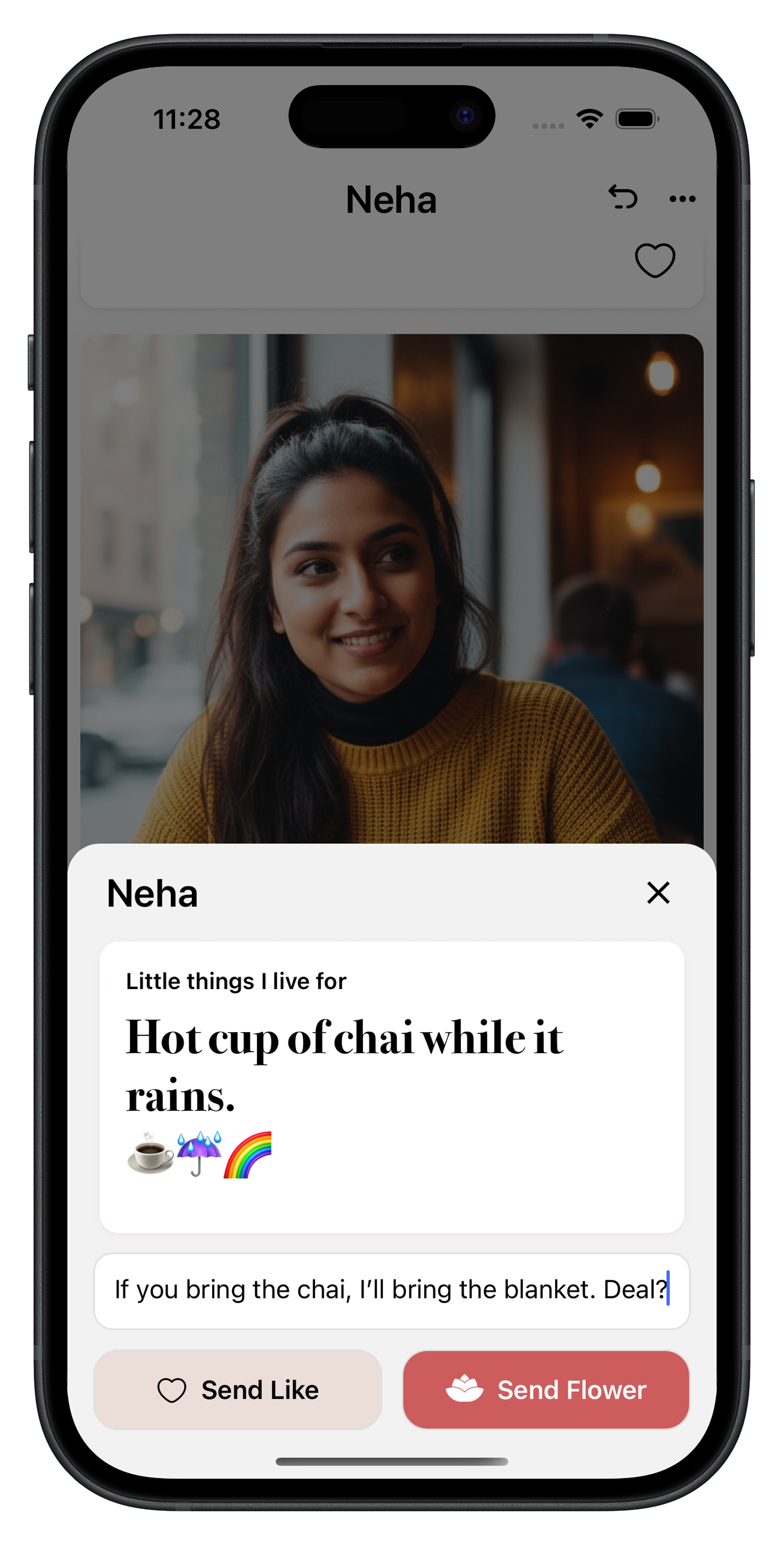
- Tap the heart icon on a person's photo or prompt answer
- Add a comment if you'd like (optional but recommended)
- Tap the Flower icon instead of "Send Like"
Sending a Flower in Standouts:
- Tap the star icon to access Standouts
- Tap the Flower icon on a photo or prompt you like
- Add a comment (optional but highly recommended)
- Tap Send Flower when ready
All OtterHalf members receive one free Flower every week. Free Flowers don't accumulate—if you don't use your free Flower, you'll still only have one available after the weekly cooldown period.
Premium subscribers receive 5 additional flowers per week (in addition to the weekly free flower).
Buying More Flowers:
You can purchase additional Flowers anytime by tapping the Flower card in the Profile tab. Purchased Flowers don't expire until you use them.
To view your available Flowers:
- Tap the Profile tab (far right of the navigation bar)
- In the "Unlock more" tab, you'll see the Flower card showing your available count
- Tap the Flower card to purchase more if needed
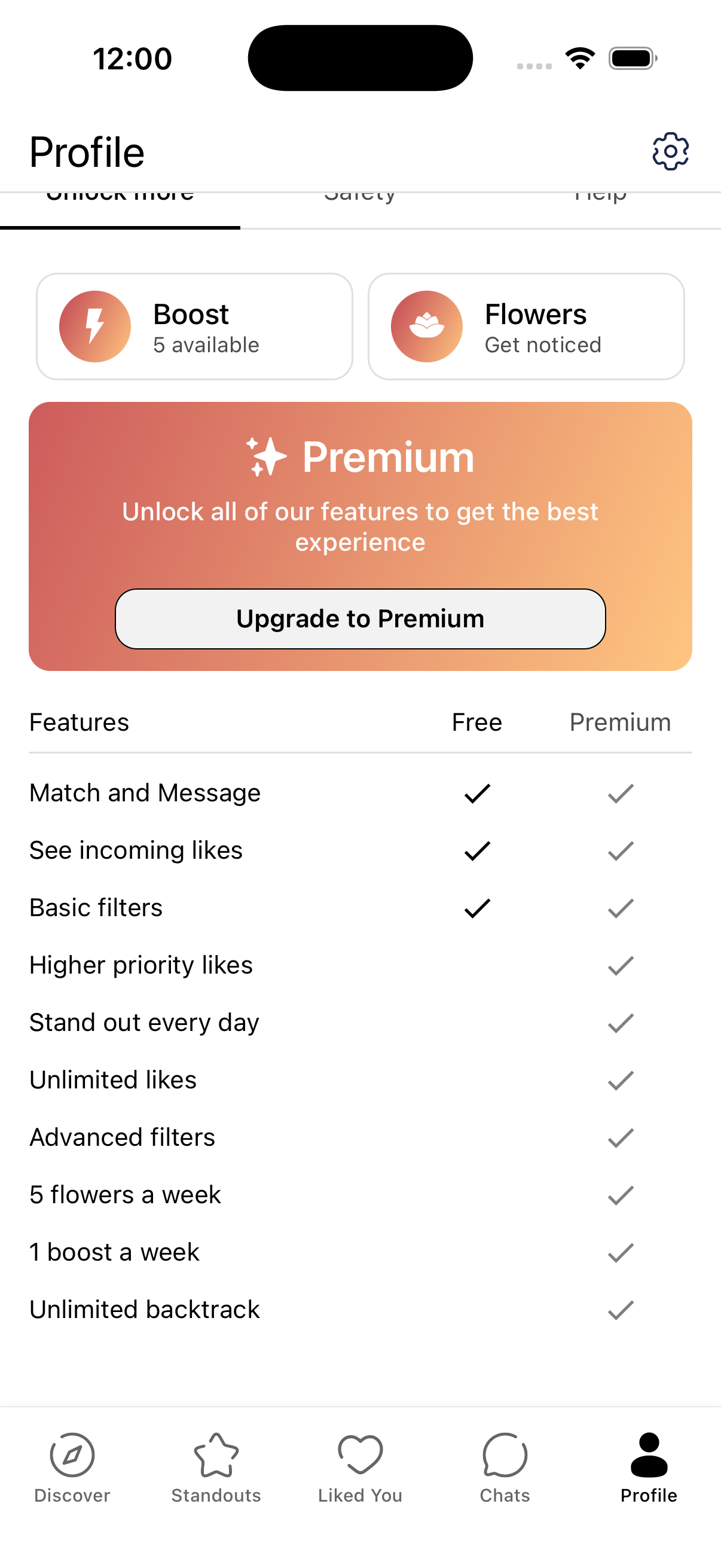
Flower bundles are available in the following sizes:
- 2 Flowers – Small pack
- 5 Flowers – Medium pack
- 10 Flowers – Large pack
- 15 Flowers – Extra large pack (Most Popular)
When You Receive a Flower:
Here's what it looks like when someone sends you a Flower:
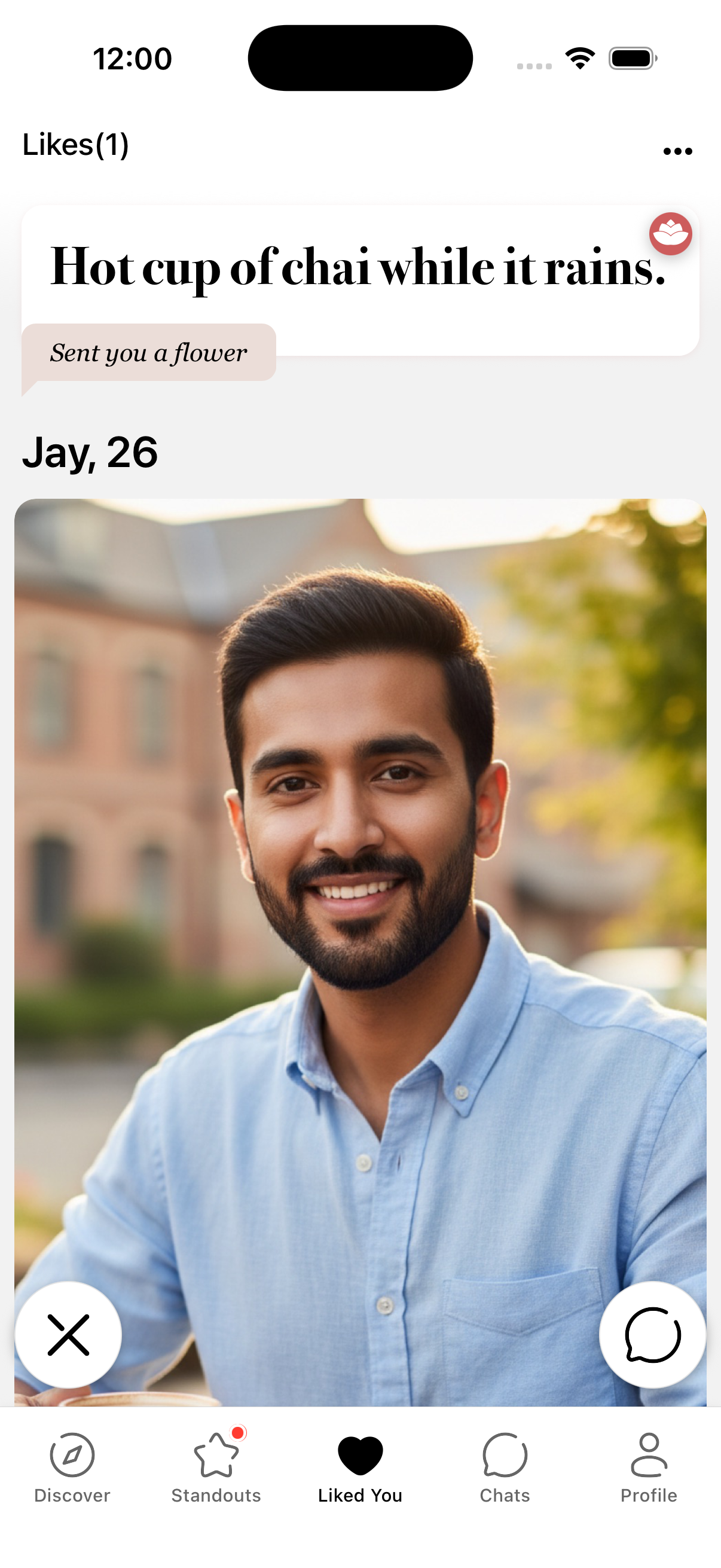
To respond to a Flower, tap on the profile that sent it. If you want to match, tap the chat icon and either send a message or tap the Match button.