
Logging in / Access
Need help getting started? Here's everything you need to know about creating and accessing your OtterHalf account.
Creating Your Account:
For security, OtterHalf requires all users to verify their accounts with a mobile phone number.
- Download the OtterHalf app for iOS or Android
- Tap Create Account
- Enter your phone number
- Enter the SMS confirmation code you receive
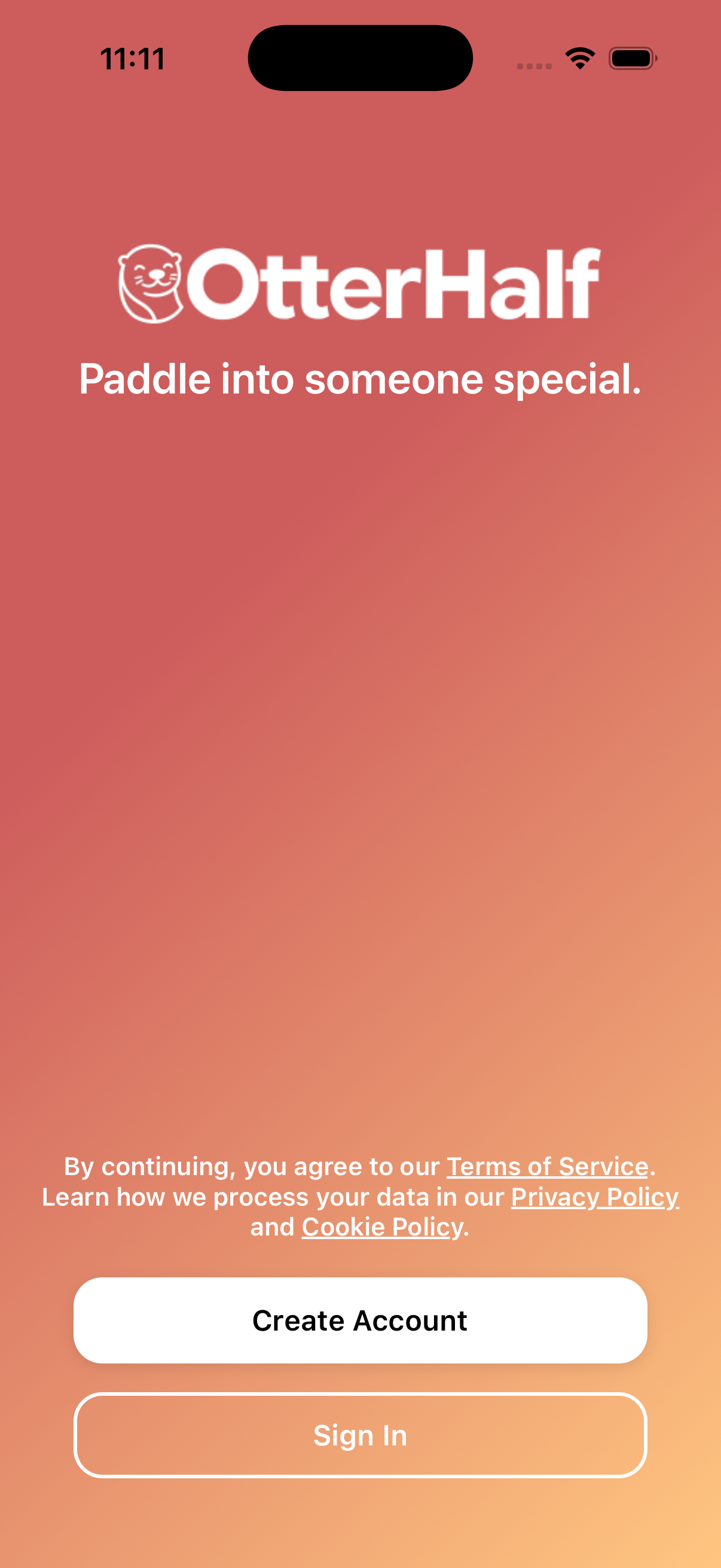
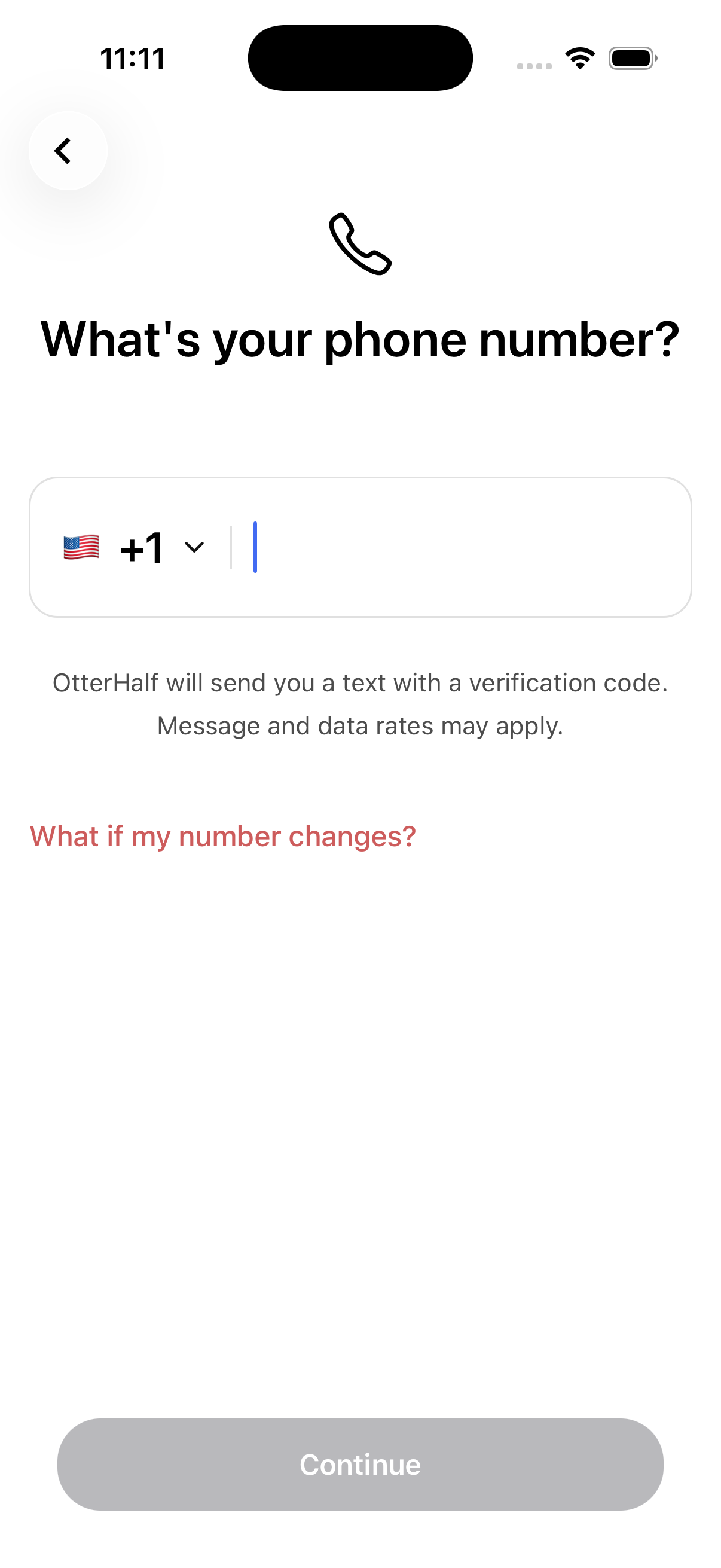
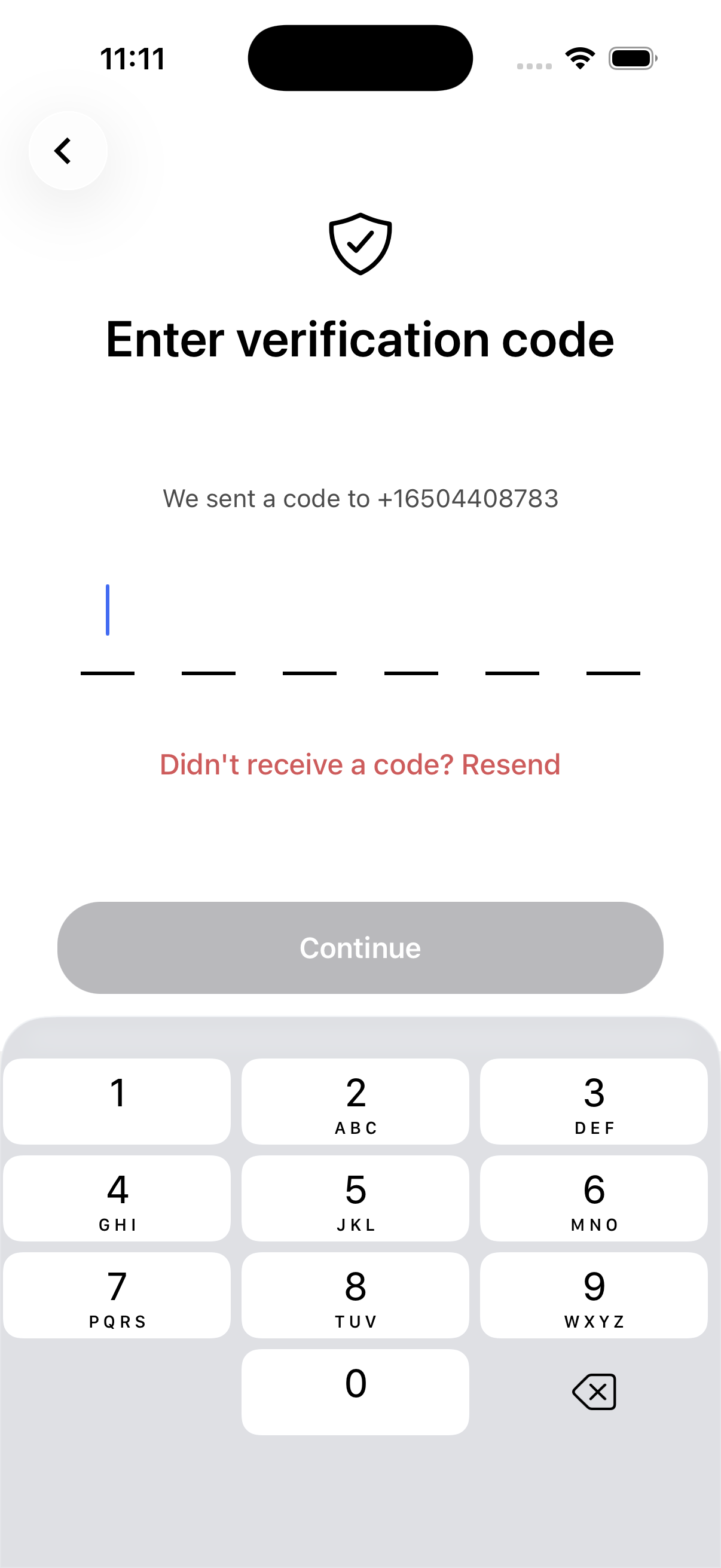
That's it! Once you verify your phone number, your account is created. You can optionally link an email address or connect your Google Account or Apple ID for additional login options later in your account settings.
Changing Your Email Address:
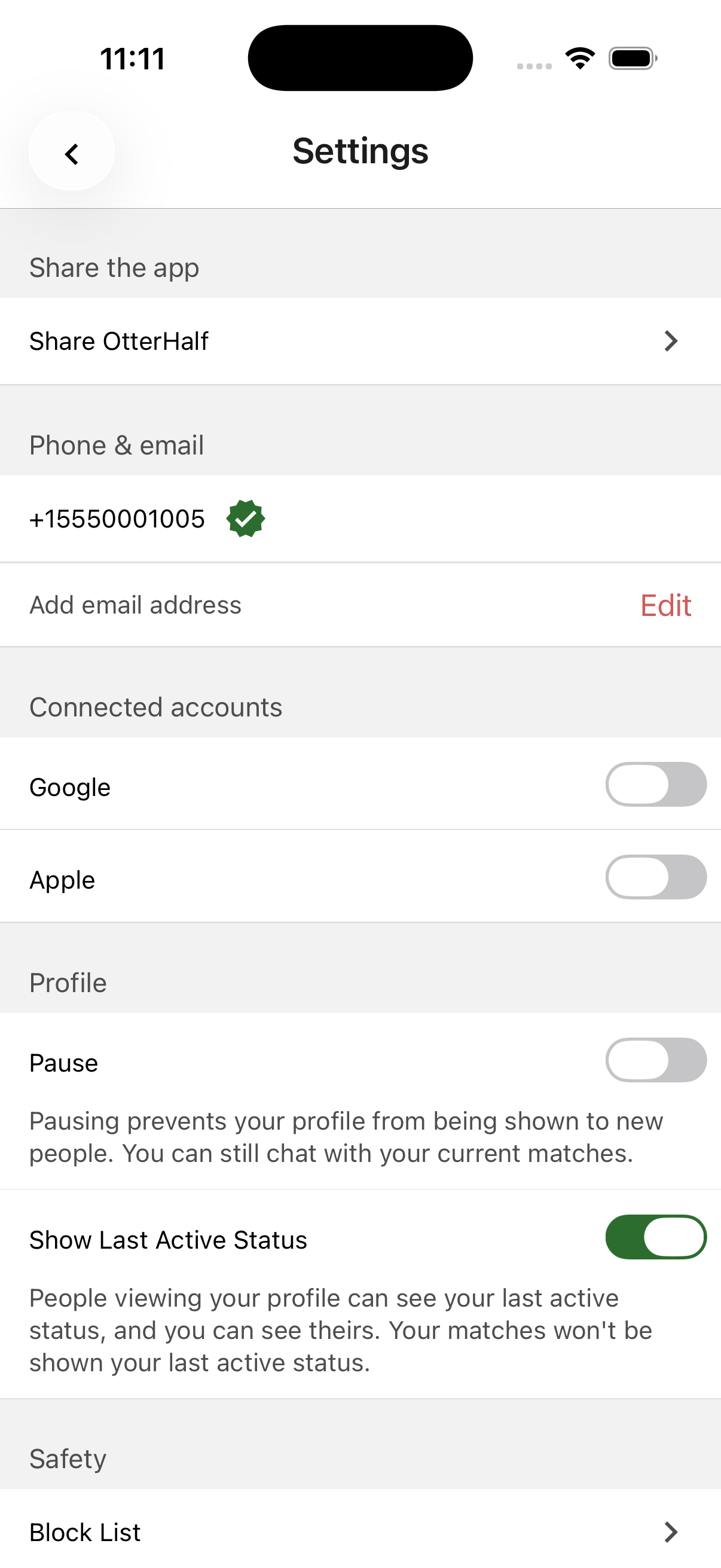
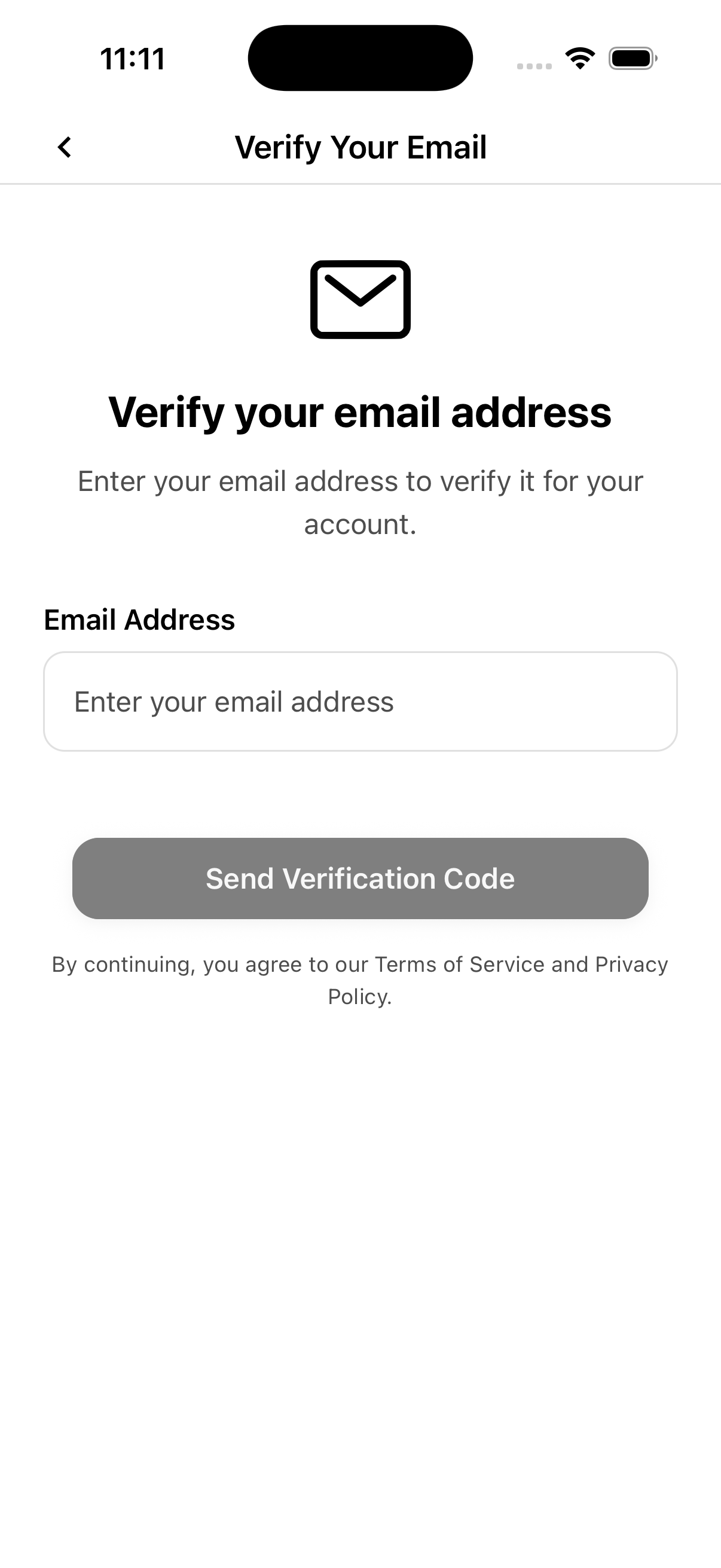
To update your email:
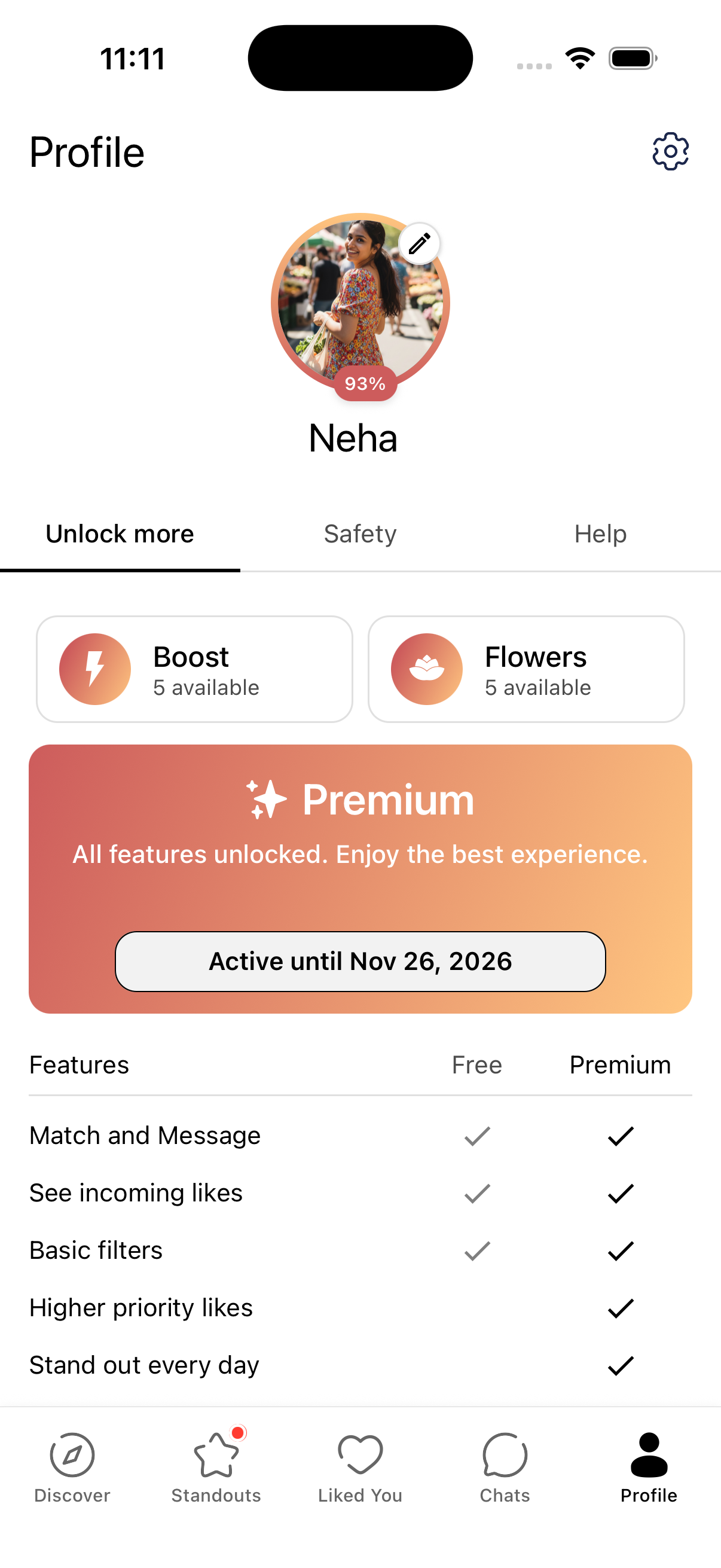
- Tap the Profile tab (far right of the navigation bar)
- Tap the Gear Icon to open Settings
- Scroll down and tap your Email Address to edit
Linking Your Google Account:
To connect your Google Account to your OtterHalf profile:
- Tap the Profile tab (far right of the navigation bar)
- Tap the Gear Icon to open Settings
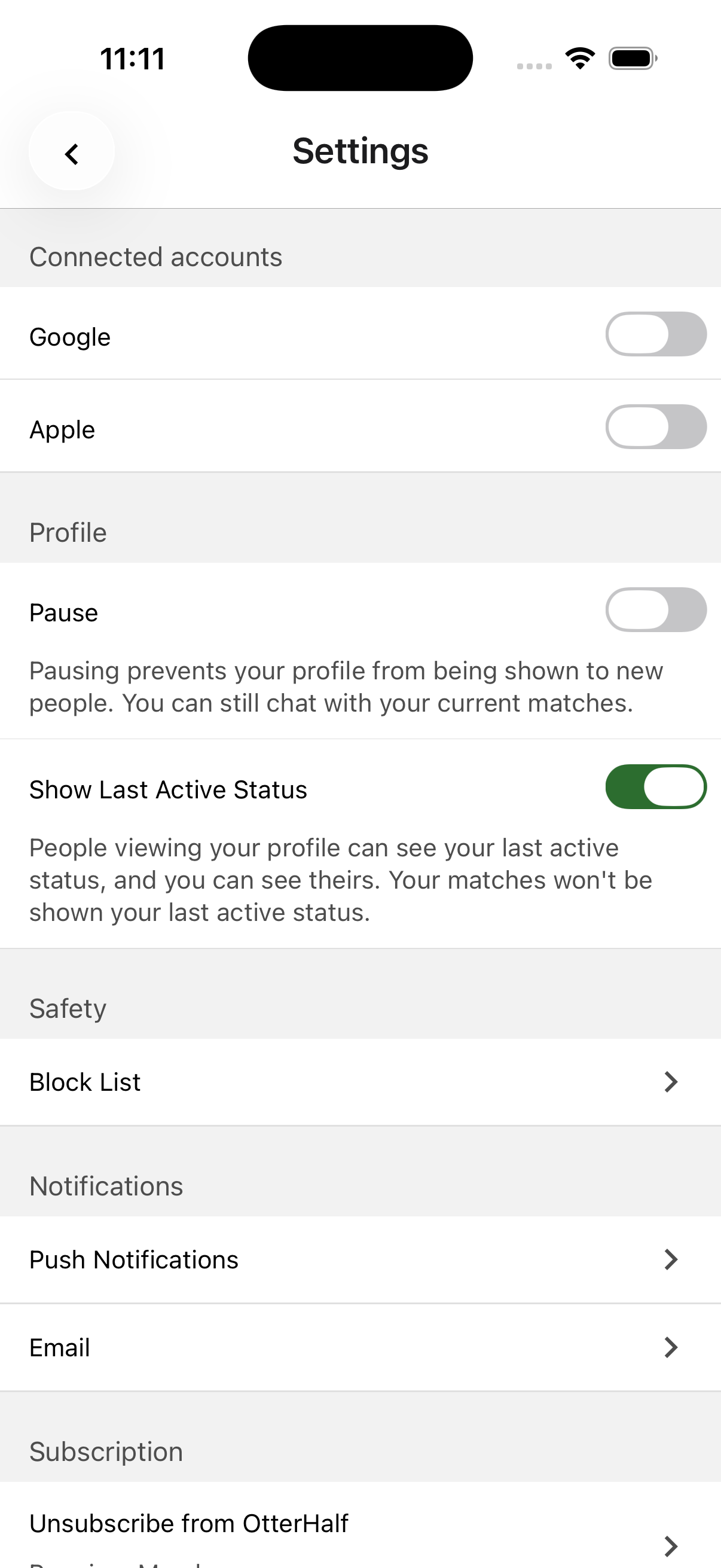
- Scroll down to Connected Accounts
- Tap the Toggle next to Google Account
When the toggle turns green, your Google account is linked.
Note: Linking your Google Account is different from linking Gmail—it only connects your login, not your email.
Linking Your Apple ID:
To connect your Apple ID to your OtterHalf profile:
- Tap the Profile tab > Gear Icon
- Scroll down to Connected Accounts
- Tap the Toggle next to Apple ID
When the toggle turns green, your Apple ID is linked and you can use it to log in.
Disconnecting Apple ID or Google Account:
To disconnect your Apple ID or Google Account:
- Tap the Profile tab > Gear Icon
- Scroll down to Connected Accounts
- Tap the Toggle next to Apple or Google so it turns gray